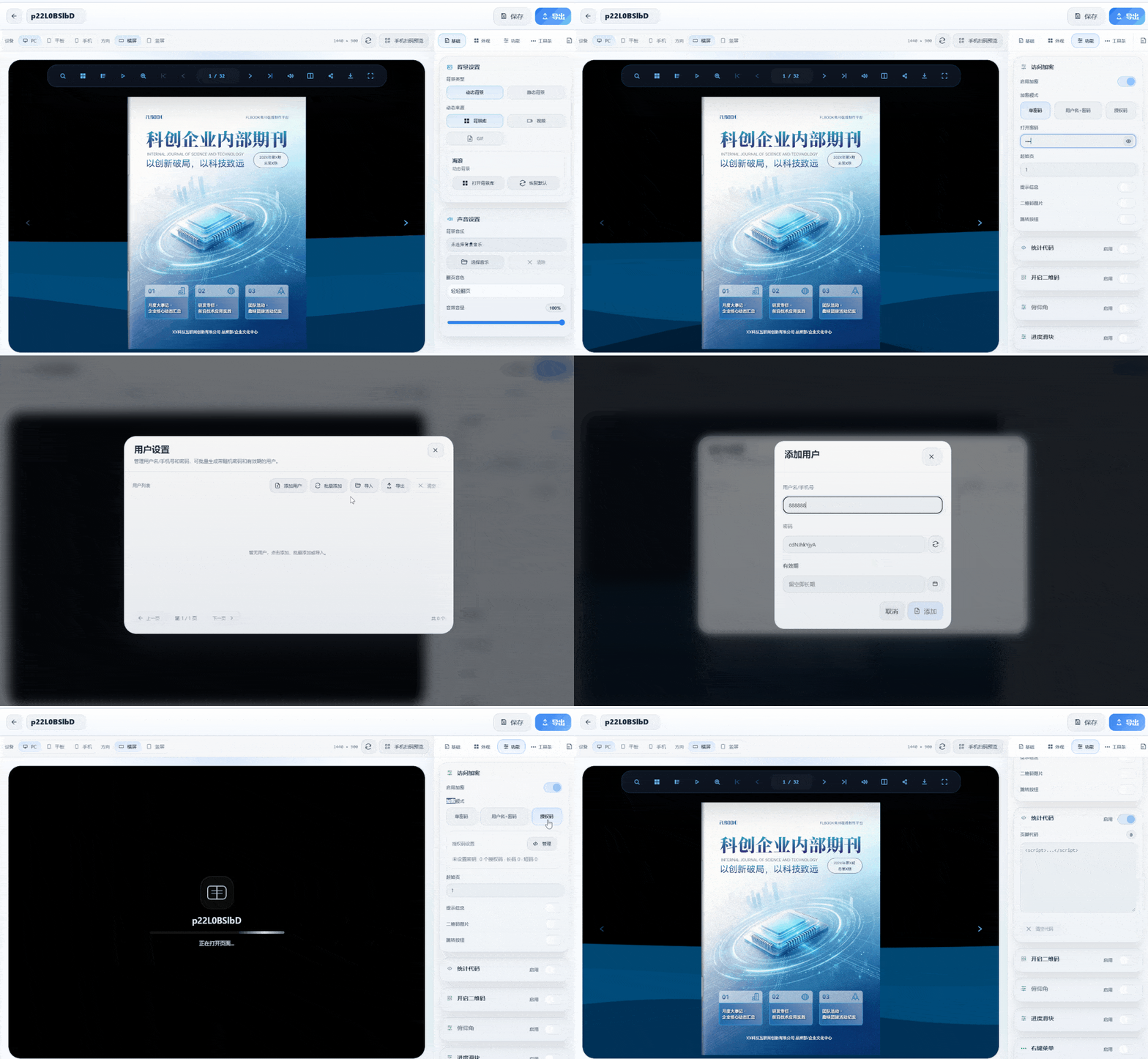
Internal corporate training publications differ from external promotional materials: their content involves job SOPs, compliance policies, and internal processes. If freely shared or downloaded, the consequences often exceed expectations.
Adding an access password to a training publication is a direct way to control who can read it.
The following two methods cover online publishing and local distribution scenarios, and neither is difficult to set up.

Method 1: FLBOOK online encryption, ideal for link sharing
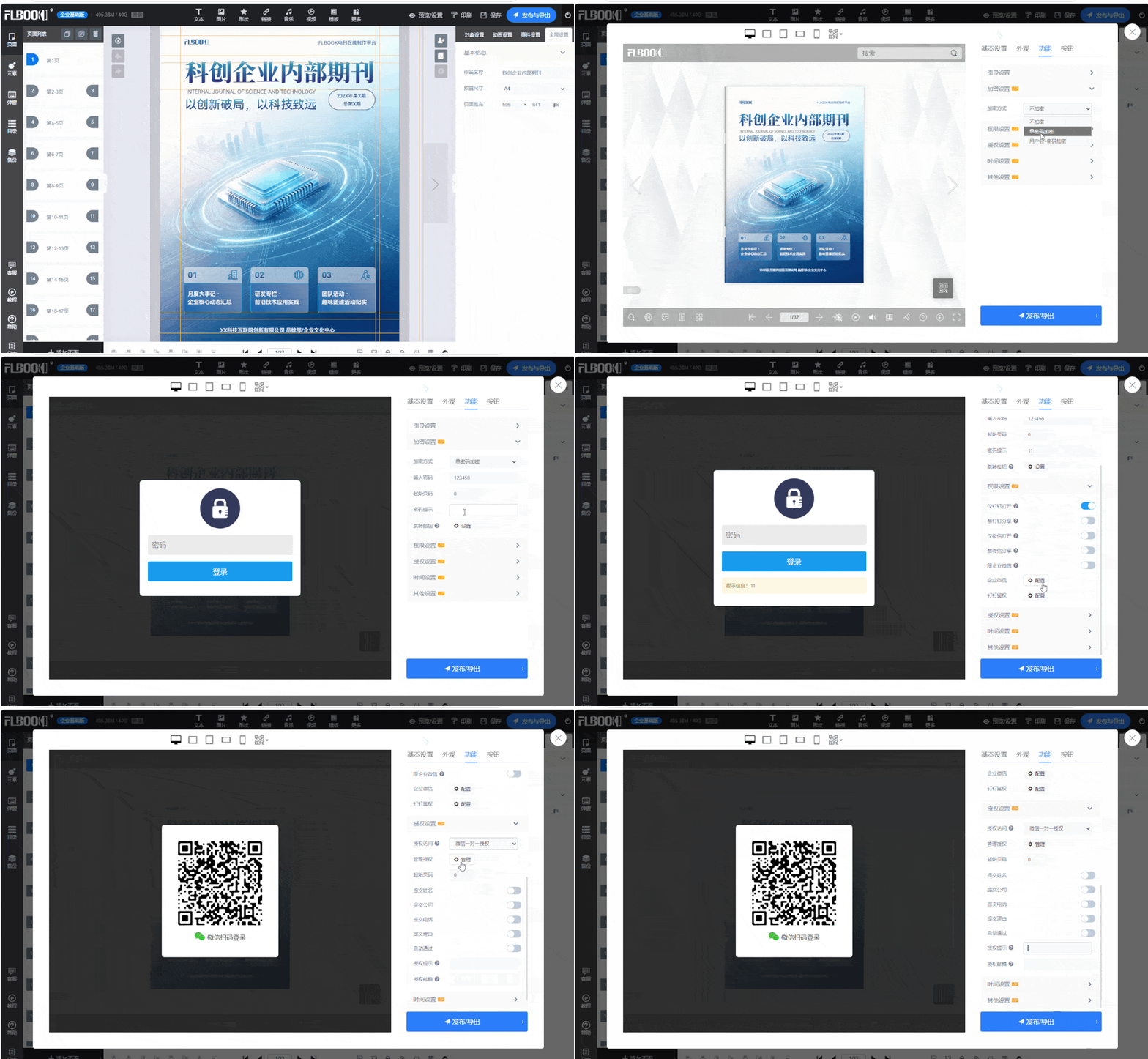
FLBOOK is an online flipbook creation platform that automatically converts uploaded PDFs into flipbooks. The encryption option is in the editor's top-right corner: Preview Settings → Features → Encryption Settings.
Three encryption methods are supported:
Encryption setting: readers enter a password to open and read the publication, ideal for unified distribution.
Permission setting: open via DingTalk, WeChat, or WeCom
License setting: open and read via individual WeChat authorization
Rating: ⭐⭐⭐⭐
How to get it:https://flbook.com.cn/
Method 2: MW3D flipbook local encryption, ideal for offline distribution
If internal training materials shouldn't be stored in the cloud, MW3D flipbook software is a desktop solution. Import PDFs or images to generate 3D page-flip effects, and export in formats including EXE, HTML, and APK. The EXE version opens without an internet connection
Encryption is enabled per project: set an access password and activation code for your work in the publishing settings, and manage readers' access permissions in batch. Since everything runs locally, data from creation to distribution never passes through third-party servers—ideal for training materials with high confidentiality requirements
Recommendation: ⭐⭐⭐
How to get it:https://soft.mwkj.net/sites/mw3dbook/