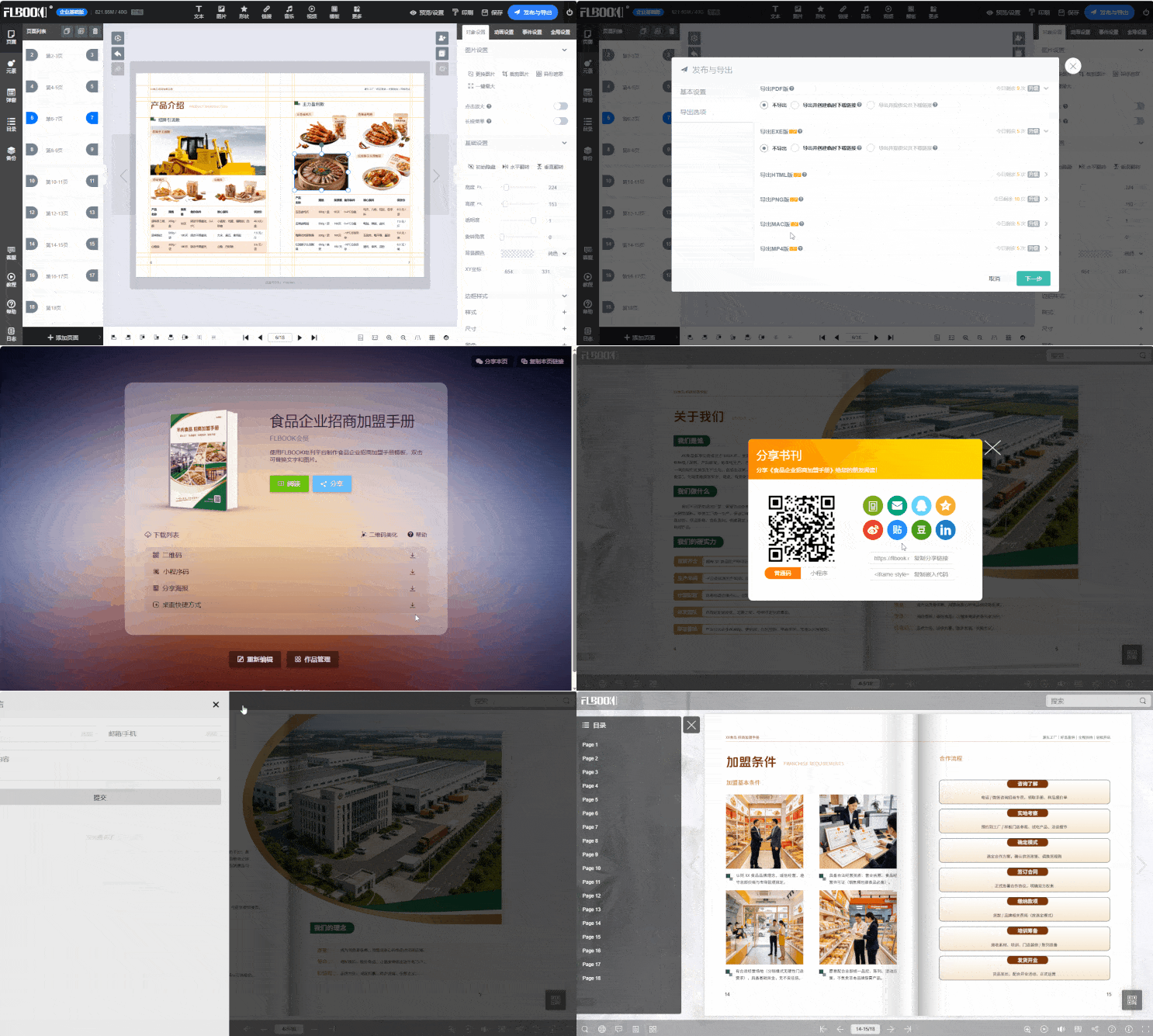
Making an electronic album used to take a long time. Recently I tried a method that took only about ten-something minutes from start to finish, so I'm documenting it. I'll write out the exact steps for anyone with the same need.
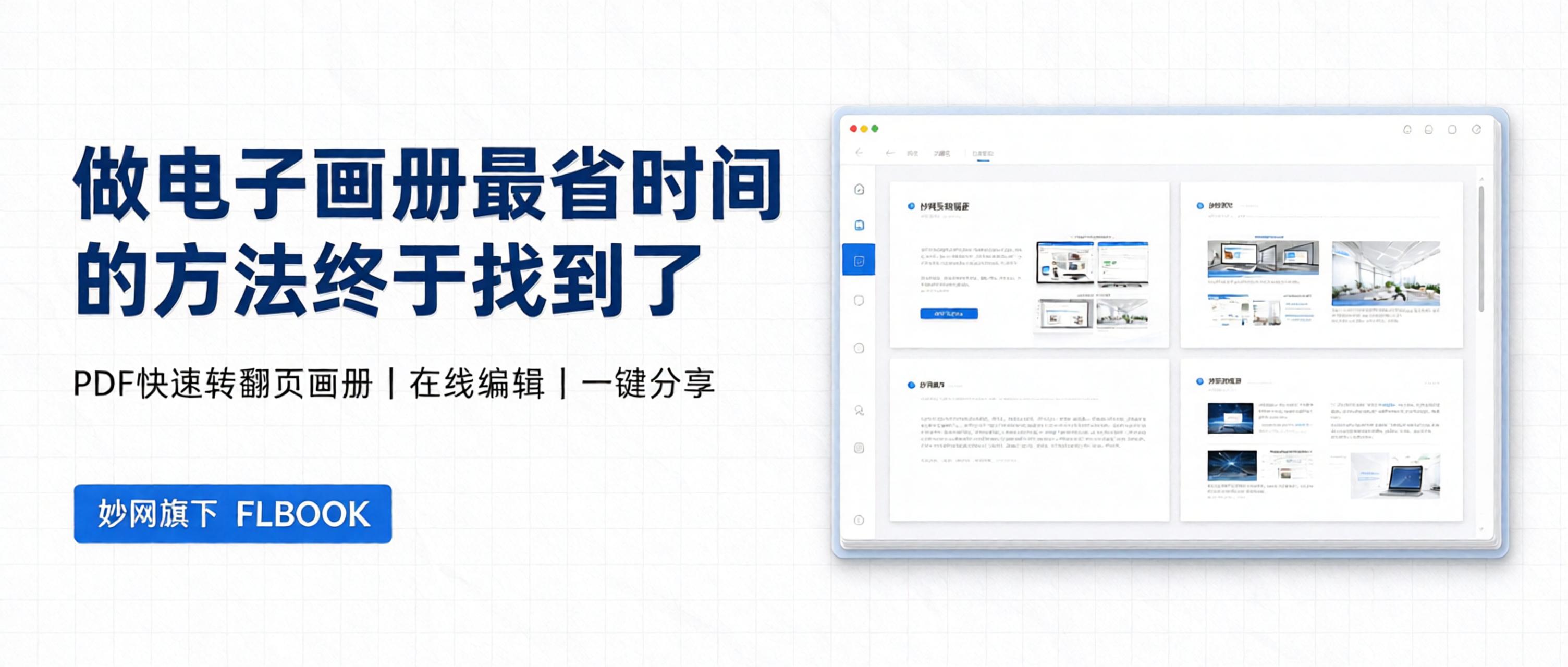
Step 1: Sign Up and Log In
Search in your browser forFLBOOKGo to the official website and click Sign Up in the top right corner. You can sign in via WeChat QR code, QQ, or email—just pick one. Logging in lets you save and manage your finished albums so you can continue editing them later.

Step 2: Create an Album
After logging in, click "Start Creating" — there are two ways to create:
- Use a Template: The template center is organized by industry——company brochures, product catalogs, education and training, wedding albums, and more. Pick one you like and click "Use Template"
- Upload a PDF: If you already have a finished PDF, just upload it and the system automatically generates a page-flipping album. PDFs under 10M can be uploaded free, with no page limit
If you're starting from scratch, we recommend using a template. If you already have a PDF file, uploading it directly is faster
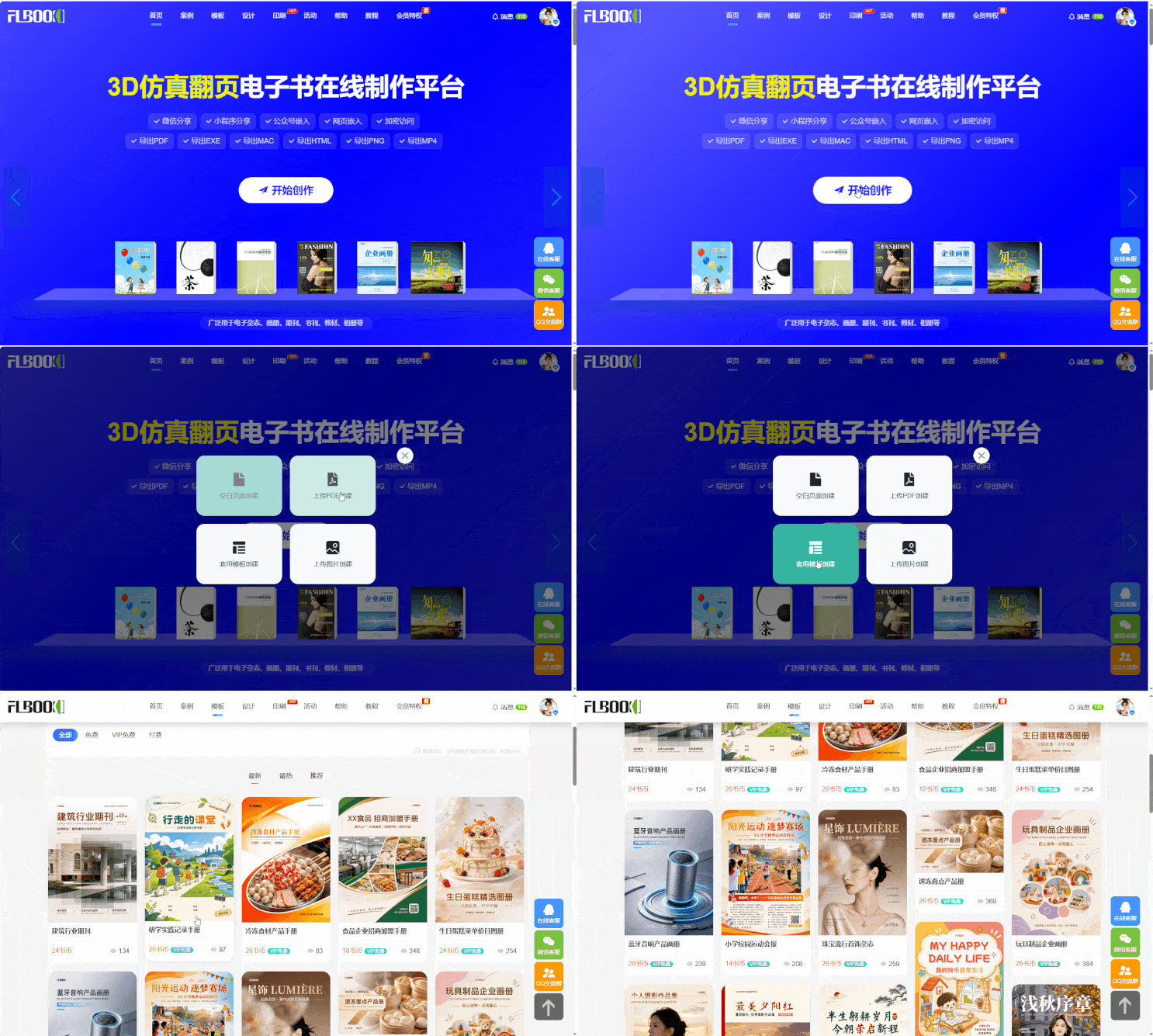
Step 3: Edit Content
After entering the editing interface:
- Replace images: Click an image area in the template to replace it with your own photos. Batch upload is supported.
- Edit text: Double-click a text area to edit directly. Font, size, and color are all adjustable.
- Add Page: Add new pages from the left panel by choosing a layout from the templates
- Add Element: Insert videos, audio, links, QR codes, and other elements
- Reorder: Drag pages to sort them and delete pages you don't need
After editing a page, click Next to continue — it works much like PowerPoint
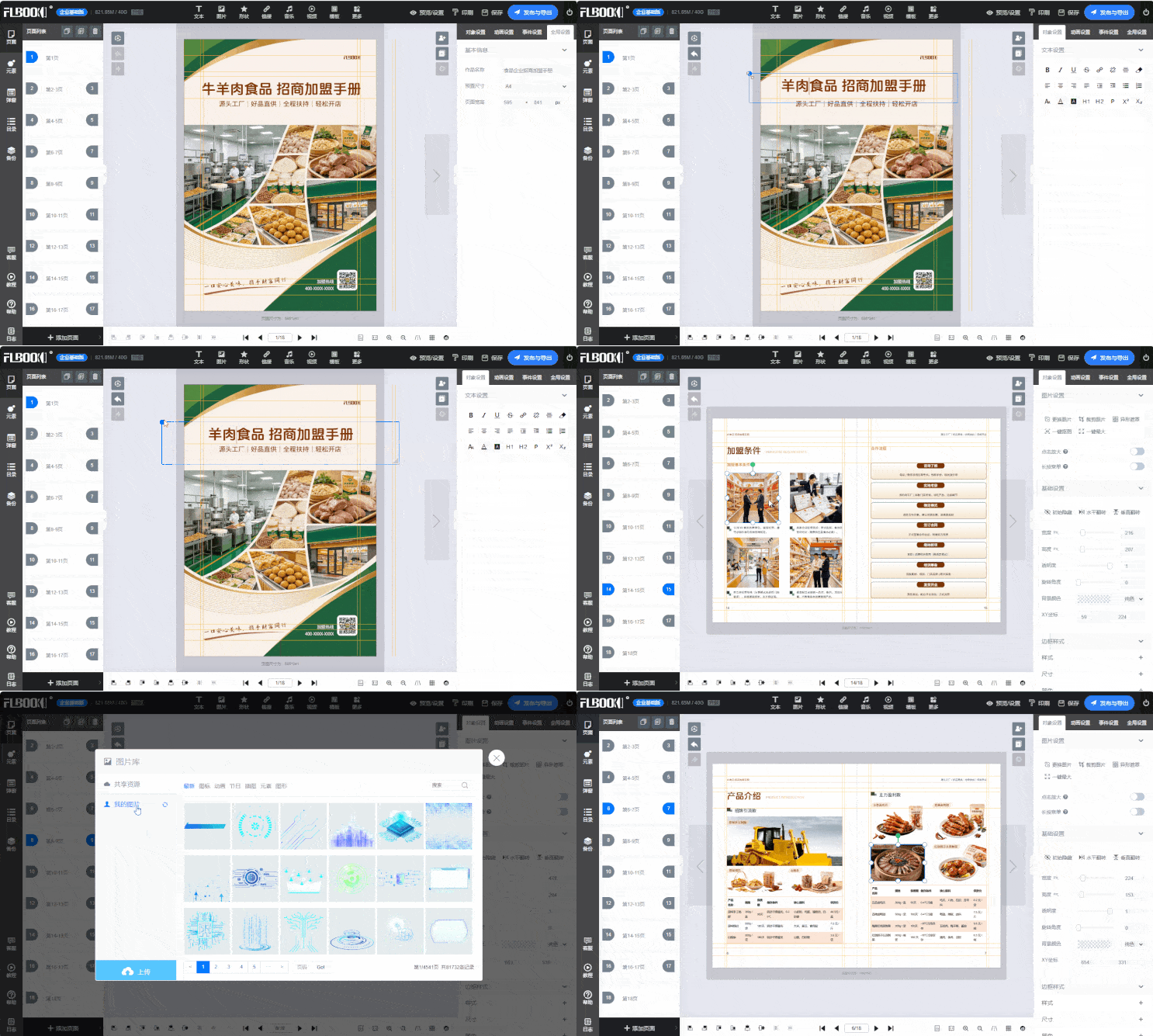
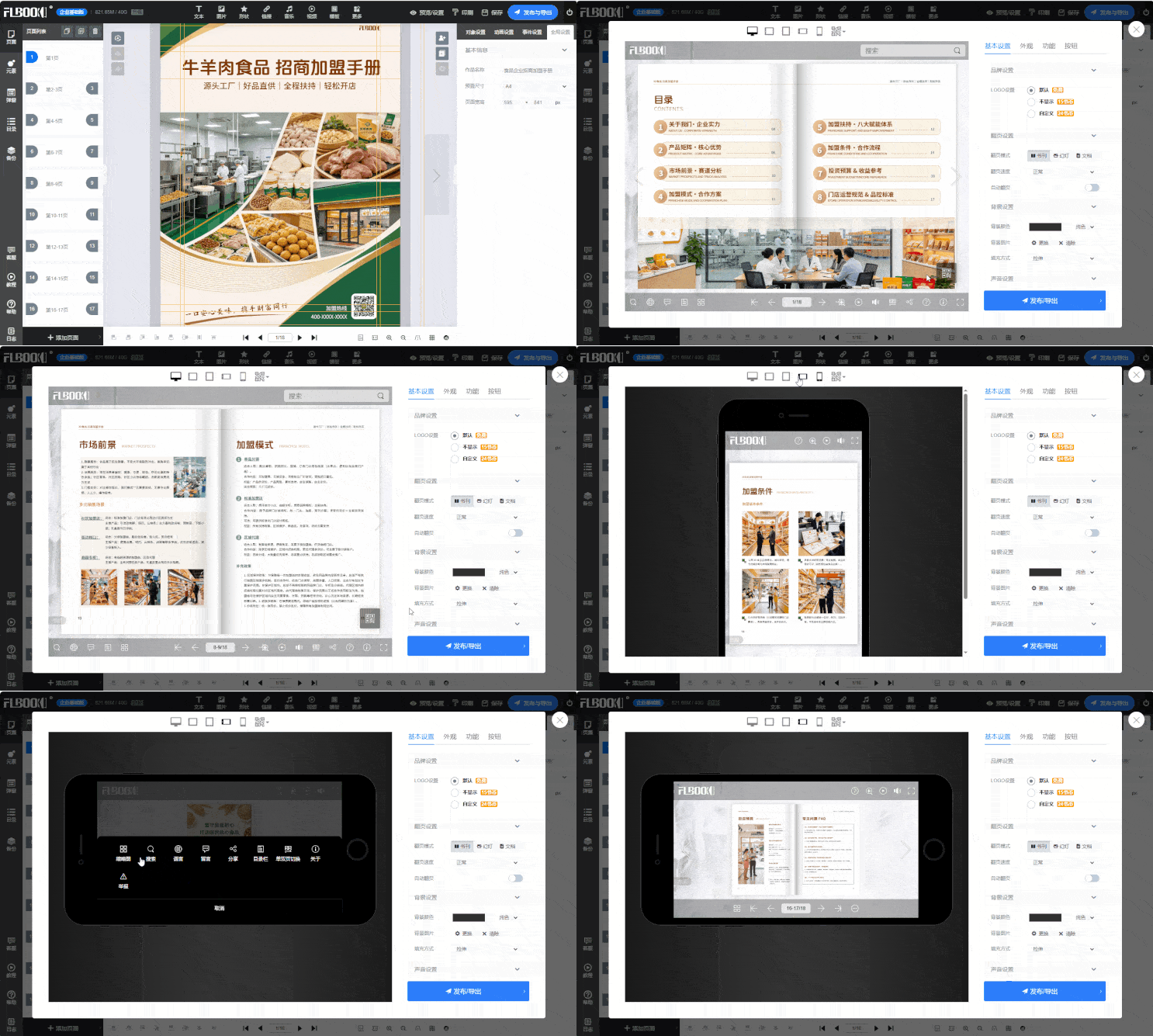
Step 4: Preview and Check
After editing, click Preview in the top right to see the overall result. We recommend focusing on:
Whether images are distorted or blurry, whether text overflows its frame, whether the page order is correct, and how it looks on mobile (you can scan the QR code to preview on your phone)
Step 5: Publish and Share
After clicking Publish, the platform automatically generates a link and a QR code
- Link: send directly to WeChat groups, Moments, or email
- QR code: download and print it for your store, product packaging, or slides
- Embed: supports embedding in WeChat articles and corporate websites
How to get it:https://flbook.com.cn/