
MW Photo Album Layout MW Photo Album Layout 图标

Simplify album creation into three steps: drag photos, apply layouts, and fine-tune. No need to design layouts or drag photos individually. Export ultra-high-res PDF/JPG directly, and submit print orders within the software.

Latest Version V3.2.0 win7,win8,win10 Desktop
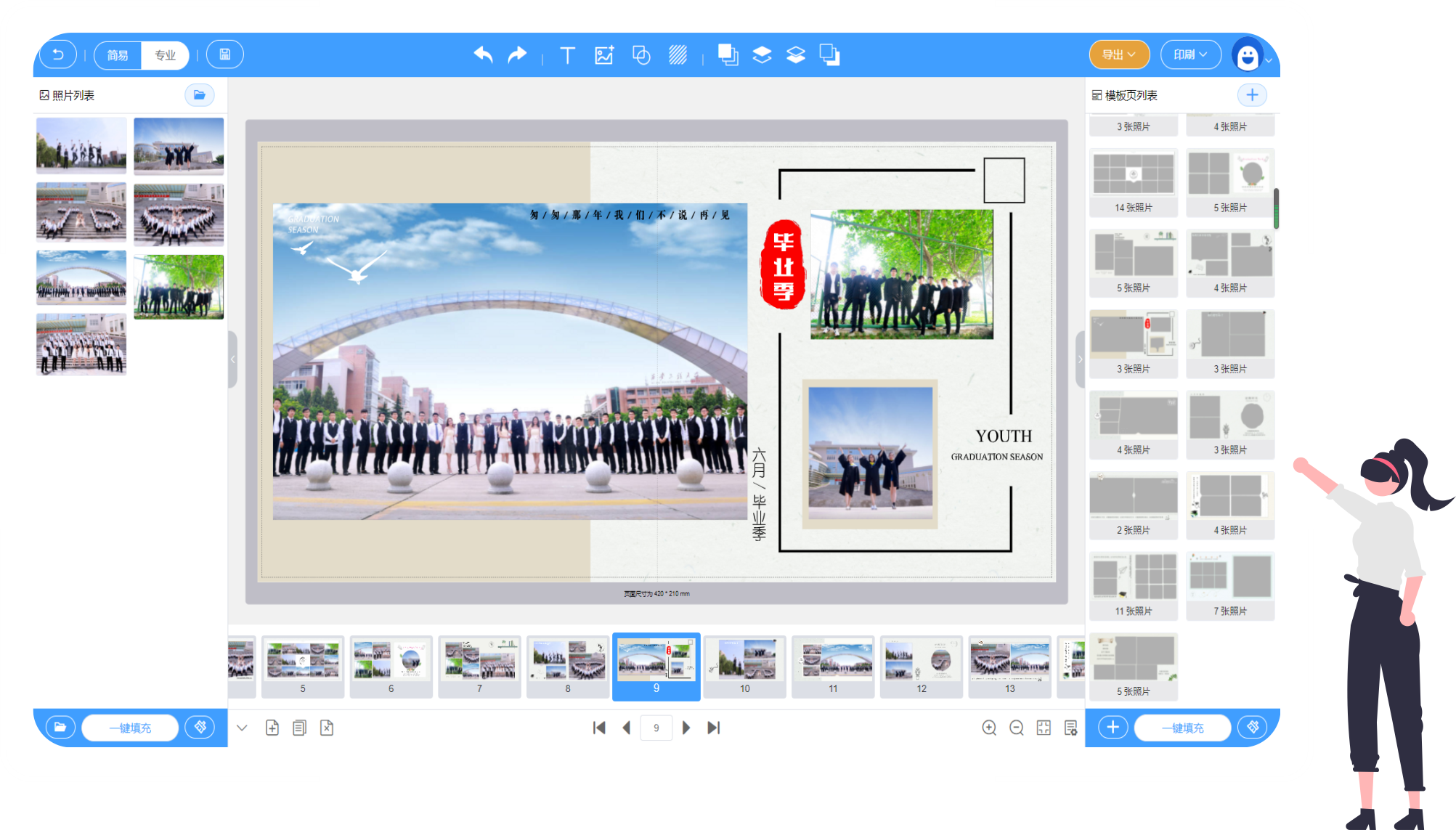
MW screenshot: photo list on the left, collage canvas in the center, layers and effects panel on the right
3 Step New → Template → Export

Complete path for an album, changing only what is needed along the way

2 Type Ultra HD Output Format

PDF is ideal for printing and circulation, while JPG is best for quick proofing and sharing.

1 Key Batch Fill

Photos and layouts are automatically placed in order, saving you from repetitive dragging.

0 Distance From Screen to Paper

After completing your work, fill out and submit the print order directly within the software

Turn the four most time-consuming tasks into four clicks

Each section below corresponds to a real action in the software; screenshots and demos are taken from actual operations within the software.

Template Center: Choose a style first, then focus on efficiency

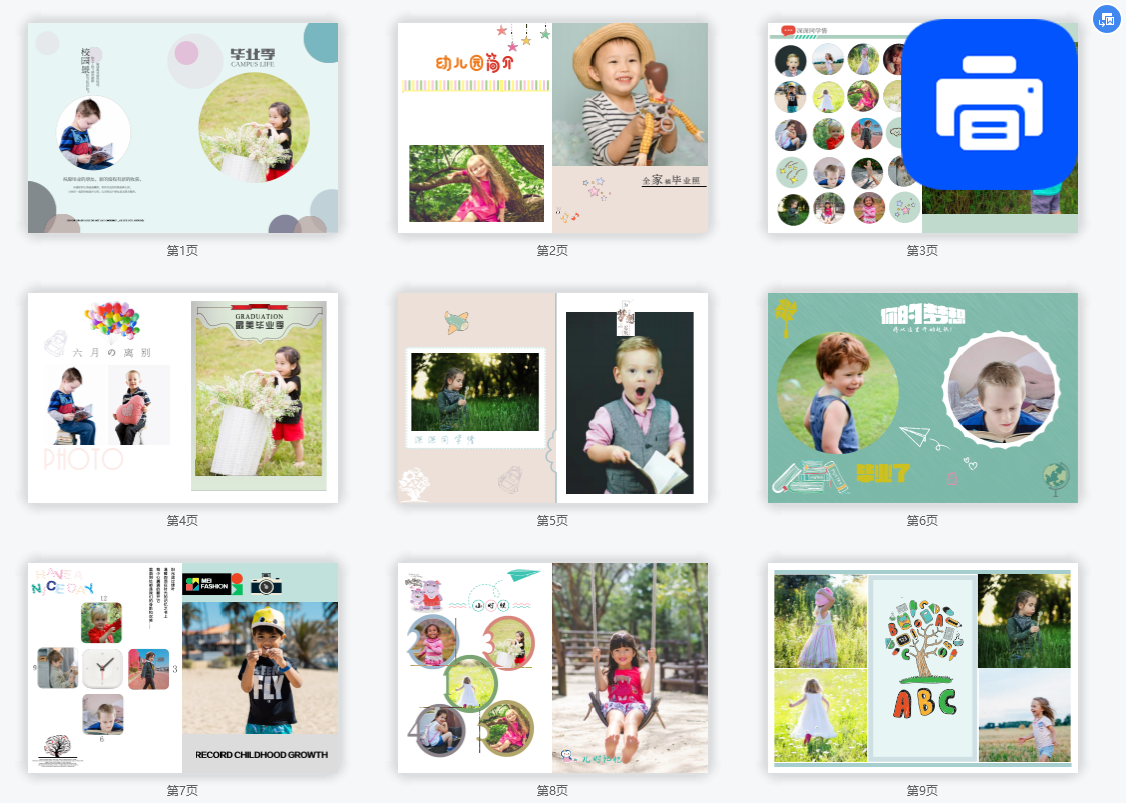
No need to start from a blank page. The Template Center organizes layouts by cover, back cover, template page, and blank page. Dimensions and page counts are clear in the list. Download your preferred template and click "Use Template" to finish creation.

  • Browse by category: cover, back cover, and blank pages each have matching layouts
  • Double-click a template to apply it to the current album page
  • Blank and template albums can be mixed at any time
Demo animation for browsing and applying templates in the Template Center
Template Center: Select layouts by page type, double-click to apply

One-click photo fill: Let the software handle the hardest part

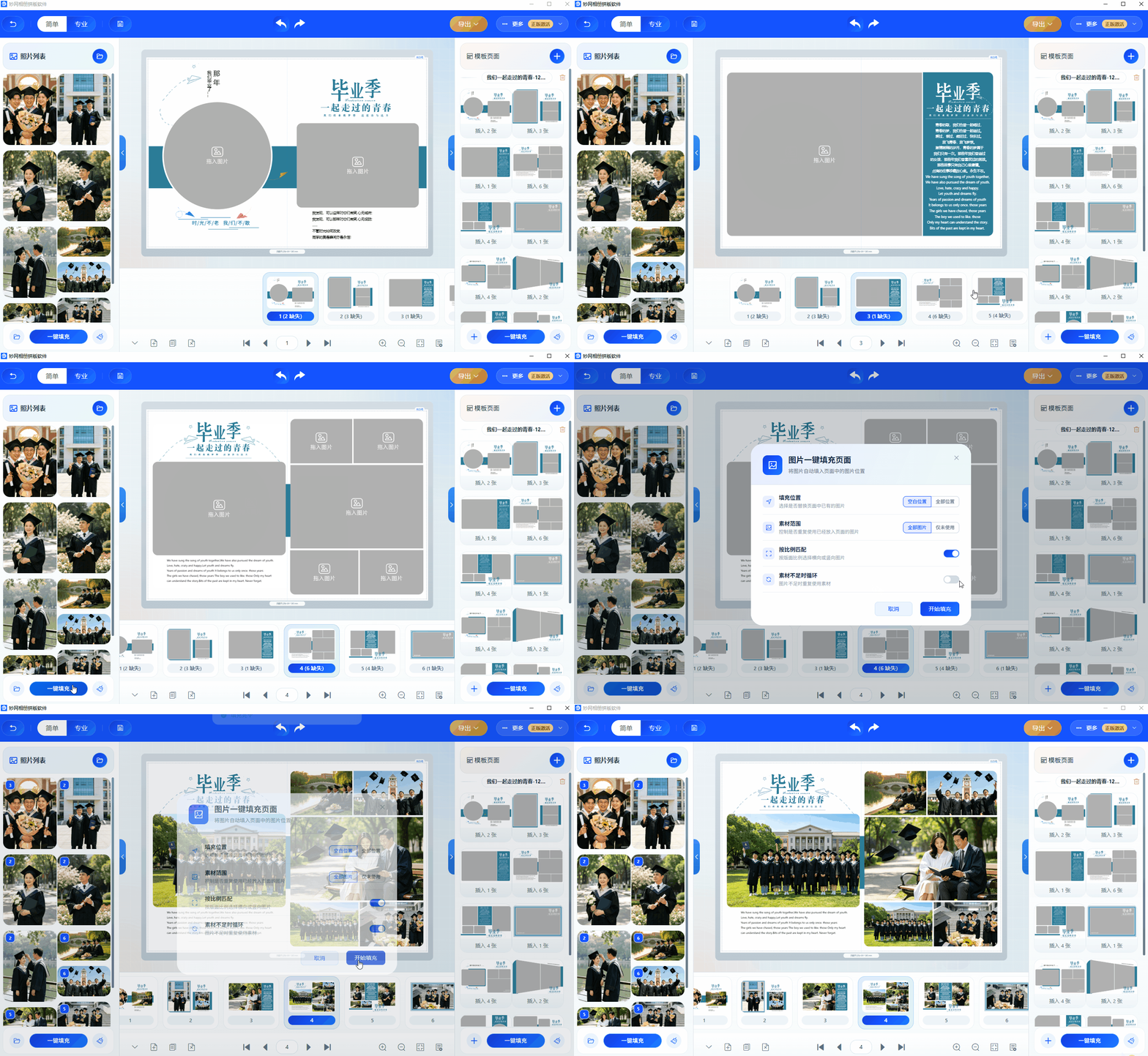
After importing, photos are listed in the album list with clear file names, sizes, and dimensions. Click "Auto Fill" to populate empty photo slots in order, quickly completing your album layout.

  • Batch import: check dimensions before layout to avoid blurriness from upscaling small images.
  • Automatic sequential placement, no need to drag images one by one
  • Replace only the specific image you want to change, leaving other pages untouched
Demo animation of one-click photo filling into the album page
One-click photo fill: Fill photo placeholders in order

One-click template fill: change styles without rearranging

Pages in the template list can also be filled into album pages in order: you can choose to fill only blank pages or overwrite existing ones, completing the layout in one step. This is especially convenient when clients need to change styles quickly.

  • Replace the layout for the entire album, keeping the style consistent from start to finish.
  • Option to fill only blank pages, keeping already laid-out pages intact
  • Scales by actual aspect ratio when page sizes differ, without distortion
Demo GIF showing one-click template fill for full album layout
One-click template fill: replace the entire album layout at once

Export & Print: From Screen to Paper

Export high-resolution PDF and JPG files with one click to meet various needs. After exporting, submit print orders directly within the software to print your finished works—no need to transfer files back and forth or open another window to fill out forms.

  • Dual PDF / JPG output, ideal for both printing and online sharing
  • Use the preview to check page order and visuals before sending to print
  • Fill and submit print orders in the Print Factory tab; track progress
Screenshot of the interface for exporting and submitting print orders
After exporting the final product, submit the print order directly in the software

Four reasons it is better for real shipping

Not just another collage tool. It solves specific studio and printing needs: fast output, consistent style, print-ready, and data ownership.

No design skills needed

Ready-made layouts for covers, back covers, spreads, and blank pages; you just place photos and write text, while the template center handles the layout.

No repetitive work

One-click photo and layout fill; batch actions replace manual dragging. Change styles by swapping layouts without redoing the album.

No guessing on print results

Switch between imposition and preflight views to verify page order, spreads, and margins before printing, avoiding issues after output.

No need to share your data

Projects and photos are stored on your own computer, with optional password protection for projects. Client data stays local, allowing you to resume editing anytime without relying on any platform.

Output Formats & Print Delivery

Print · HD PDF

Export the entire book as a PDF. Page order matches the layout result, suitable for print shops, photo labs, or self-printing and binding.

Share · JPG Images

Export JPGs by page to easily send to clients via WeChat or email for approval, and select pages for preview samples.

Order · Print Orders

Fill out and submit print orders online within the software. Complete album creation and printing from home, eliminating the need to exchange files back and forth.

Recommended delivery workflow: imposition → preflight check → export JPG for client approval → export PDF for printing after approval → submit order in the printer tab.

Create a book in 4 steps

Fixed workflow from creating an album to final print. Beginners can produce prints independently by following the steps.

  1. 01 New Album

    Create a blank album or start with a ready-made style from the template center.

  2. 02 Choose Layout

    The Template Center is categorized into covers, back covers, template pages, and blank pages. Download your favorite template and click "Use Template" to apply it.

  3. 03 Fill in photo

    Fill photo placeholders on the page sequentially from the album list with one click to quickly complete the photo layout.

  4. 04 Export for Printing

    Export ultra-high-definition PDF/JPG with one click, then fill out and submit your print order online at the "Print Factory" and wait for delivery.

Step 03 saves the most time: filling a 6-image page and a 40-page booklet uses the same action. View tutorial

For the next booklet, try completing it with four actions

Free download trial, supports win7,win8,win10 Desktop

Download now

Current Version V3.2.0